
 Link in Bio
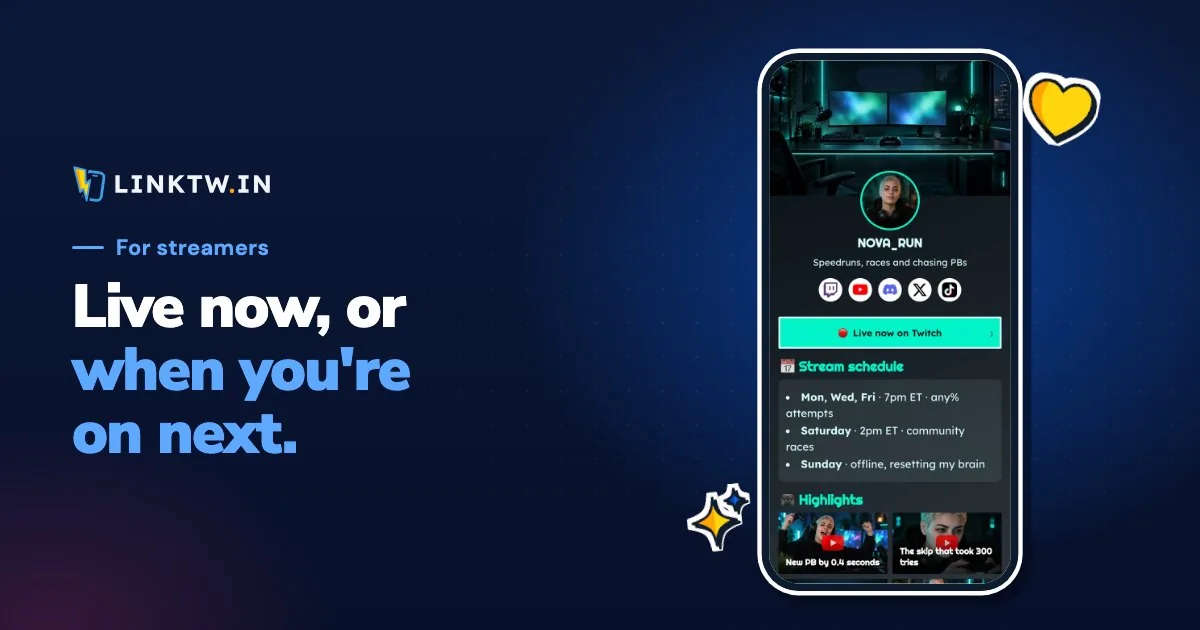
A link in bio for streamers answers two questions, in this order: are you live right now, and if not, when are you on next? Put a live button to your Twitch, Kick or YouTube channel at the top, your schedule with a time zone under it, then clips, merch and your Discord.
The live button matters more than it looks. A plain twitch.tv link in your Instagram bio opens inside Instagram's own browser, where the viewer isn't signed in to Twitch, so Follow asks for a login and chat is out of reach. A LinkTwin bio page opens the Twitch or Kick app instead, where the viewer is already signed in and can follow and chat straight away.
You paste your normal twitch.tv/yourname or kick.com/yourname address, and the button on your LinkTwin bio page does the rest. If the app isn't on the phone, the same button opens the channel on the web. The Pixel Run template already starts in the right order: live button, schedule, clips, then merch and community, on a dark page with a neon accent.
What goes on the page, in this order
People who tap from a highlight want to watch you now, or to know when you're on next. Both go at the top, and everything else can wait one scroll.
| Order | Block | What the viewer gets |
|---|---|---|
| 1. Live now | Link | Your Twitch, Kick or YouTube channel, opened in the app |
| 2. Next stream | Text | Days, times and a time zone |
| 3. Something to watch | YouTube Video | A few clips that make sense with no intro, for anyone who arrives while you're offline |
| 4. Merch | Product | A photo, a price and a button, not a bare URL |
| 5. Community | Multi links | Discord, a tip jar, a VOD archive, side by side |
The live button: Twitch, Kick or YouTube
Use one Link block and make it the first thing on the page. Point it at your channel, not at a single VOD that will be stale by Friday. A Twitch link that opens the app can be your channel, a live stream, a clip or a past broadcast, and a Kick link that opens the app can be your channel, a live stream or a clip. A YouTube channel or live URL opens in the YouTube app.
Change the label when you go offline. "Live now" reads oddly at 3am, while "Next stream: Friday 7pm ET" works at any hour and matches the schedule under it. The destination can stay your channel; only the words on the button change with your status.
Every LinkTwin short link comes with a QR code, so a short link to your channel can sit on a be-right-back screen or a flyer. A scan from the phone's camera has no social app in the way, so it opens the streaming app directly.
Write the schedule for a stranger
Your channel's own schedule reaches people who already follow you. The Text block on your bio page is for everyone else, the clip viewers who haven't followed yet. Keep it short: days, a start time, the zone, and the game or format if it changes.
Clips, merch and the Discord
Plenty of visitors arrive while you're offline. A YouTube Video block holds clips you pick, and a tap opens them in the YouTube app. Choose moments that need no context, like a new record, a last-second race or a tour of your setup. A lore clip from hour four of a Saturday stream won't land with someone who's never seen you.
A Video player block can play a Twitch video right on the page for someone with only a minute. For anyone ready to stay, the live button is the better path: in the app they're signed in and can follow and chat straight away.
Merch gets a Product block: photo, title, price, button. A shop on your own site opens in the phone's real browser rather than Instagram's, where saved logins and Apple Pay are.
Links to your own website or shop are included on every paid plan.
Discord, the VOD archive and a tip page go together in Multi links, under the live button. We'd make joining a server the second step, never the first, since they came from a clip to watch you.
Where to paste the page
Copy the page address, the linktwin.bio/@yourname one, into every profile that sends you clip viewers: Instagram, TikTok, YouTube and X, plus one of your Twitch channel's social links, so a viewer already in your chat can find merch and the Discord. In TikTok, links stay in TikTok's own browser until the viewer picks Open in browser from its menu, as why TikTok links stay in TikTok explains, so don't promise TikTok chat that the button jumps straight into Twitch.
Where a tap lands depends on the app it came from, and why a link in bio opens in the browser goes through it app by app. If uploads are your main thing and the stream is the extra, the upload-first order in a link in bio for YouTubers fits better.
Your page's link in bio analytics show page views, taps on each button, countries, devices and where visitors came from. LinkTwin counts the taps, not follows or subs, and its click analytics never show who a viewer is.
Start from Pixel Run
- Claim a handle and open Pixel Run. The page starts with this look and these blocks, ready for your own channel. It's free to start.
- Set the top Link to your channel:
twitch.tv/yourname,kick.com/yournameor your YouTube channel. - Fill the Text block with the week: day, start time and time zone on every line.
- Add a few YouTube clips that stand on their own.
- Add a Product for merch, then Multi links for Discord, the tip jar and the VOD archive.
- Copy the page address into your profiles. If you've never set one up, what a link in bio is shows where each app keeps that field.
Common questions
Can the page show when I'm live on its own?
No. The page doesn't check Twitch, Kick or YouTube for your live status, so the top button says whatever you last wrote. Switch it between "Live now" and your next stream time yourself when you go on and off air.
I stream on Twitch and Kick. Two live buttons?
Lead with the platform where most of your viewers follow you, and put the other one right under it as a second Link. Two equal buttons at the top make a new viewer stop and choose before they've seen you.