
 Link in Bio
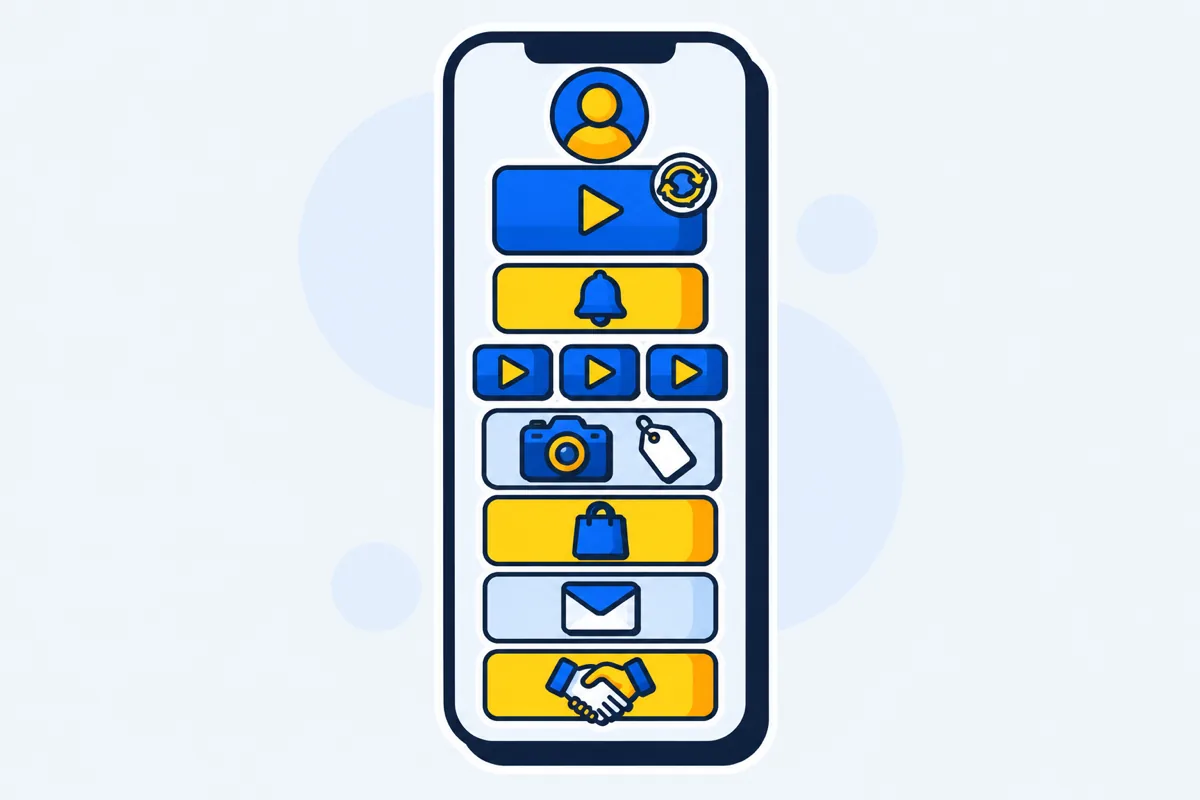
A YouTuber's link in bio should open with the video your current clip was cut from, then your newest uploads, then your channel. Gear, merch, a newsletter and a way for brands to reach you go underneath, because a stranger from a Reel taps the first button and only regulars scroll.
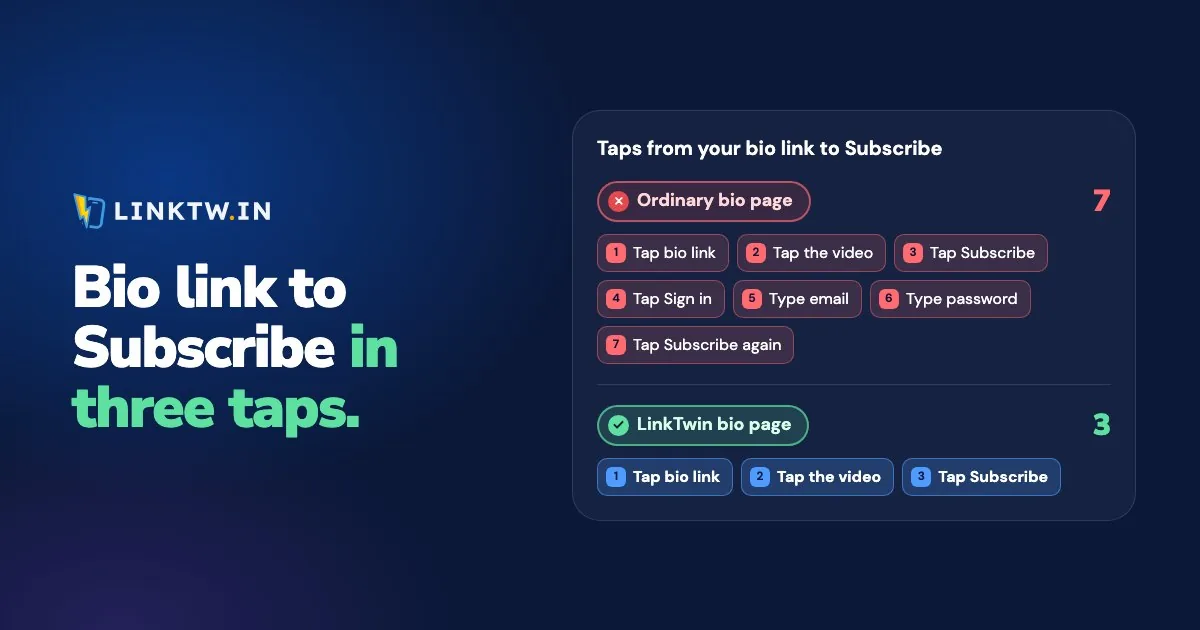
What those buttons open matters as much as their order. A plain YouTube link tapped from an Instagram bio loads YouTube's website inside Instagram's browser, where your viewer usually isn't signed in, so Subscribe starts with a login screen. A YouTube button on a LinkTwin bio page opens the YouTube app from Instagram and Threads, where that viewer is already signed in and can subscribe, like or comment right away. If they don't have the app, the same button opens the video on the web.
That's the difference between a bio page and a list of links. Why a link in bio opens in the browser shows the same tap on Spotify and Amazon buttons, and LinkTwin's YouTube links that open the app are what sit behind every video button.
What to put on the page, in order
Label each button with what it opens. "Full video: trail repair" tells a visitor far more than "YouTube". This order is for a cycling channel, so swap the words and keep the spots.
| Spot | What goes there | Label it like | Block |
|---|---|---|---|
| 1 | The video today's clip was cut from, while that clip is running | Full video: trail repair | YouTube Video |
| 2 | Your newest uploads, filled in for you | New this week | Latest Video |
| 3 | Your channel | Subscribe on YouTube | Link |
| 4 | A start-here playlist | Start here: five beginner rides | Playlist |
| 5 | Gear and affiliate picks | The bike and the lights | Amazon Link |
| Then | Merch, newsletter, brand contact, a share button | Jerseys · Sunday ride notes · Work with me | Product, Email capture, Contact form, Share |
Three buttons already make a finished page: the clip's video, the newest uploads and the channel. If your older tutorials or reviews still bring in viewers, move the start-here playlist above the feed.
Point the channel button at your channel page. Opened in the YouTube app, that page already has the Subscribe button on it, and the ?sub_confirmation=1 ending is meant for computer browsers, as the YouTube subscribe link guide explains.
"Full video in bio": where that link should go
When a clip's caption says "full video in bio", the viewer expects the link on your profile to open that exact video. Not your channel homepage, and not whatever you uploaded last, unless the clip was cut from it. So while a clip is getting views, the top button on your page is that video's watch page in a YouTube Video block, and it comes out when the clip dies down.
- Say the title at the end of the clip, out loud or on screen, so people can match it to a button.
- Use the same link on a Story. In the YouTube app, tap Share, then Copy link, and paste it into LinkTwin. The short link works on a Story sticker and in DM replies too, and from Instagram it opens the YouTube app on that video.
- On YouTube Shorts, skip the bio. Adding a related video to a Short is one of the advanced features YouTube gives a channel. Once you have it, set the clip's full video as the Short's related video in YouTube Studio (links on YouTube Shorts has the steps).
Some creators keep a single short link in the bio and repoint it at each new full video instead of editing the page. Changing where a link points after you share it is included on every paid plan.
Keep the newest upload on the page by itself
A video you swap by hand goes stale the week you forget. The Latest Video block fills itself: paste your channel address (youtube.com/@yourchannel) or a playlist, pick how many videos and a layout, and it shows your newest uploads. Every video in it opens the YouTube app the same way the other buttons do.
It checks YouTube on a schedule, not the second you publish, and it can't know which older upload you clipped today. That's why the clip's video gets its own block above the feed.
Sorting a feed by most popular, up to three YouTube feeds on one page, new uploads within three hours and a Refresh now button come on every paid plan.
Leave "Embed video on page" off, which is the default. Embedding plays the video on your page instead of opening the YouTube app, and inside Instagram that means Instagram's browser again.
Gear, merch and sponsor buttons
A gear list answers the comment everyone leaves. In an Amazon Link block, each product carries an "Ad" label by default and the page shows Amazon's disclosure sentence; set its Position to "Under links" to keep it next to the products. Save your Associates tag once per Amazon store and LinkTwin adds it to the link, sends each shopper to the Amazon store of their country (23 stores), and opens the Amazon app where they're already signed in. You need an Associates tag first, and Amazon Associates for YouTubers walks through getting one.
Give each sponsor its own button, so the taps you report belong to that brand alone, and switch on the Product block's "Sponsored-content label" (it's off by default). The wording for captions and videos is in the affiliate disclosure guide.
Merch through YouTube Shopping needs the YouTube Partner Program first (YouTube's Shopping requirements). A Product block doesn't wait for that: a photo, a price and a button to your Shopify store or Etsy shop.
Links to your own website or shop are included on every paid plan.
A Contact form labeled "Work with me" keeps brand messages out of your DMs, and Email capture is the newsletter button. Sign-ups can go on to Mailchimp, Kit, Sendy, Klaviyo, beehiiv, Google Sheets or a webhook.
The Contact form is available on every plan. Email capture is available on every plan. Sending sign-ups on to an email tool is available on every paid plan.
Put the page on your channel and in your bios
On YouTube, the channel's Home tab can show up to 14 links, and the first one is displayed near the Subscribe button (YouTube Help). In YouTube Studio, open Customization, then Profile, click Add link, and Publish. Make that first link this page, or merch or the newsletter if that's your one ask. Descriptions, cards and end screens each take a different kind of link (where links can go on YouTube).
Paste the same address into your Instagram and Threads bios. From both, video buttons open the YouTube app, and the page stats show which platform sent the taps. On TikTok, a bio tap stays in TikTok's browser until the viewer uses TikTok's own menu, which a LinkTwin page points them to (why TikTok links stay in TikTok).
Build it in four steps
- Claim your name on the LinkTwin link-in-bio page. The address ends in
/@yourname. - Start from a template already laid out for video: Daily Vlog, Field Notes for travel films, Pixel Run for gaming, or Tech Desk for gear reviews.
- Put a YouTube Video block first with the clip's video, then Latest Video set to your channel, then the rest in the table's order.
- Paste the address into your bios and your first channel link. After a week, open the page stats (views, taps on every button, referrers, countries and devices), move the tapped buttons up and drop what nobody touches.
The free plan includes 10 links and 500 clicks a month.
Common questions
Can I skip the page and put one YouTube link in my Instagram bio?
If YouTube is your only ask, yes. Make it a YouTube link that opens the app from Instagram, or the tap stays in Instagram's browser. Once you also want gear, a playlist or a brand contact, the page holds them all behind the same address.
A single link that always opens your newest upload, using the Latest Video switch on the link's edit page, is available on every paid plan.
Will the page show who subscribed?
No. You see views, taps on every button, referrers, countries and devices. LinkTwin counts clicks, so subscribers still come from YouTube Studio.